
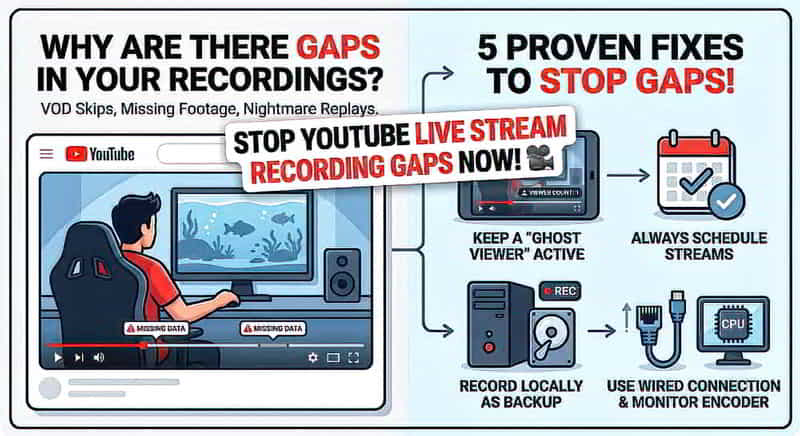
Why Are There Gaps in Your YouTube Live Stream Recording?

If you run a 24/7 live stream YouTube channel, you’ve probably experienced this nightmare: you go back to check your replay (VOD), and the player scrubber randomly jumps forward. Entire chunks of your broadcast are just… gone. Sometimes it’s 20 minutes. Sometimes it’s an hour or more.
The frustrating part? Your streaming software (OBS, Streamlabs, vMix) shows everything ran the whole time perfectly. So what’s going on?
This is a well-known quirk in YouTube’s DVR and archiving system, and it catches out even experienced streamers. Just because your stream went live and looked fine doesn’t mean YouTube recorded every second of it.
Below, we’ll break down exactly what causes these gaps, backed by how YouTube’s platform actually behaves, and give you a step-by-step plan to make sure it never costs you footage again.
What Causes Missing Gaps in YouTube Live Stream Recordings?
There are two main culprits: YouTube’s own server-side behaviour, and problems on your end (network or encoder issues). Let’s look at each.
1. The “Zero Viewer” Ghost Town 👻
This is, by far, the most common cause of missing DVR chunks.
YouTube processes a staggering amount of live video every second, across millions of channels. To keep server costs and bandwidth usage under control, YouTube’s backend quietly optimises resources during long, continuous broadcasts, especially ones running unattended for hours or days.
Here’s the mechanism:
- If your stream runs for an extended period with zero concurrent viewers, YouTube may pause the live DVR buffer.
- Your feed stays technically “live,” and your encoder keeps pushing data the whole time, but YouTube’s recording archive simply stops saving that empty stretch.
- The moment a real viewer shows up, YouTube “wakes up” the DVR and resumes recording.
- The result: a hard skip in your final video, exactly where the empty period was silently dropped.
This is especially common for:
- 24/7 “aquarium,” “nature cam,” or “radio” style channels
- Streams running overnight in low-traffic time zones
- Test streams or private streams with no audience
2. Network Drops & Encoder Hiccups 📡
Not every gap is YouTube’s doing. Sometimes the problem starts on your side of the connection.
If your internet connection drops packets or your streaming software briefly disconnects from YouTube’s ingest server, your stream might look continuous locally, but YouTube receives broken, incomplete data.
When YouTube stitches together the final replay file, it cuts out that “dead air” rather than showing a frozen or corrupted frame. The result, again, is a sudden jump in the timeline.
Common triggers include:
- Unstable home or venue internet (especially upload speed drops)
- Wi-Fi instead of a wired Ethernet connection
- ISP throttling during peak hours
- Underpowered encoding hardware causing dropped frames
- Router or modem restarts mid-stream
3. Using “Stream Now” Instead of a Scheduled Event
There’s a third, less obvious factor: how you start the stream.
YouTube’s spontaneous “Stream Now” feature is more prone to DVR instability than a properly scheduled event. When you create a scheduled live event in the YouTube Live Control Room, YouTube allocates a fixed, dedicated stream profile in advance. This usually produces a much more stable connection for DVR tracking and archiving.
How to Prevent Missing Footage in Your YouTube Live Stream
You’ve put in the work to build and run a live channel; you shouldn’t have to lose hours of footage to a background server optimisation. Here are the most effective ways to protect your recordings.
1. Keep a “Ghost Viewer” Active 👀
The simplest fix for the zero-viewer problem is making sure you’re never actually at zero viewers.
- Open your own stream on a secondary device an old phone, tablet, or spare laptop.
- Mute the volume and drop the playback quality to 144p to save bandwidth.
- Leave it running continuously. This keeps at least one active viewer registered, which stops YouTube from pausing the DVR buffer.
You can even build (or find) a simple script/app that keeps a headless browser window open on the stream to act as a persistent “ghost viewer,” if you want to automate this across a device you don’t need for anything else.
⚠️ Important caution: Don’t try to game this by opening two browser tabs on the same PC/IP address. YouTube’s systems are built to detect this kind of duplicate-session behaviour and will often collapse it back down to 0 real viewers, defeating the purpose entirely. Use a genuinely separate device on your network instead.
2. Always Schedule Your Streams in Advance 📅
Avoid “Stream Now” for anything you care about archiving.
- Create your live event ahead of time in the YouTube Live Control Room.
- This gives your stream a stable, pre-allocated profile that’s more reliable for DVR/VOD recording.
- Bonus tip: if you need to make Control Room changes later, you can go back to the scheduling page without ending the stream, which preserves your accumulated views and likes, which reset if you stop and restart a broadcast.
3. Always Record Locally as a Backup 💾
This is the single most important safety net, and it’s one YouTube itself recommends. Straight from YouTube’s Help Center: they advise recording a local archive as a backup to your cloud stream.
Never treat YouTube’s cloud recording as your only copy. Here’s how to set up a local backup:
- In OBS (or your encoder of choice), configure it to automatically start a local recording the moment you click “Start Streaming.”
- Save the local file as MKV (safest against corruption if your PC crashes mid-stream) or Fragmented MP4.
- Store it on a drive with enough free space for your typical stream length; 24-hour streams in 1080p can easily run 15–30GB+ depending on bitrate.
If YouTube’s VOD drops a chunk, you’ll still have a complete, high-quality master file to patch the gap or re-upload separately.
4. Use a Wired Connection and Monitor Your Encoder
Reduce the chance of gaps caused by your own connection:
- Use a wired Ethernet connection instead of Wi-Fi wherever possible.
- Watch your encoder’s dropped-frames counter during long streams; consistent drops usually point to an upload bandwidth or CPU bottleneck.
- Consider a dedicated streaming PC or hardware encoder for long-running 24/7 channels, separate from any machine you’re using for other tasks.
5. Check Your Stream Health Dashboard
YouTube’s Live Control Room includes a stream health indicator. Regularly checking this (or setting up alerts) can help you catch ingest problems in real time, before they turn into hours of missing footage.
HLS vs RTMP: A Quick Real-World Note
For anyone considering HLS streaming to YouTube as an alternative to RTMP
When I was testing, HLS streams also showed a noticeable number of DVR gaps. However, I did that testing as a private, unscheduled stream with no viewers, meaning both major risk factors (zero viewers and “Stream Now”) were present at once. It’s not yet clear how much of the gap issue was due to the protocol itself versus these other factors. If you’re testing HLS for a real broadcast, apply the same fixes above (scheduled event + ghost viewer + local recording) before concluding the protocol’s reliability.
Quick Reference: Fixing YouTube DVR Gaps at a Glance
|
Cause |
Fix |
|
Zero concurrent viewers |
Keep a muted “ghost viewer” active on a separate device |
|
Unstable “Stream Now” sessions |
Always create a scheduled event in Live Control Room |
|
Network drops / encoder hiccups |
Use wired ethernet, monitor dropped frames |
|
No backup if YouTube drops footage |
Record locally (MKV/Fragmented MP4) as standard practice |
|
Ending stream to change settings |
Edit scheduling without stopping the broadcast to keep views/likes |
Frequently Asked Questions
Does YouTube ever restore missing DVR footage? No. Once YouTube’s backend decides not to save a segment of the DVR buffer, that portion isn’t recoverable from YouTube’s side. This is exactly why a local backup recording is so important.
Will a ghost viewer use a lot of data or bandwidth? Very little. Running a second device at 144p with the volume muted uses minimal bandwidth, well worth it to avoid losing entire segments of your broadcast.
Does this affect Super Chat, chat replay, or monetisation? Missing DVR segments affect only video playback in your archive. Chat history is generally stored separately, though timestamps in the chat replay may appear out of sync with a shortened video timeline.
Is this problem specific to 24/7 channels? It’s most common on 24/7 or long-duration channels because they’re the most likely to experience stretches of zero viewers. Still, any long stream, including overnight streams on a normal channel, can be affected.
Should I stop using “Stream Now” completely? For quick, casual, or one-off streams where archiving perfectly doesn’t matter, “Stream Now” is fine. For anything you plan to keep as a VOD or repurpose later, scheduling in advance is the safer choice.
Please share this article if you like it!